Sharing
Deze inhoud is nog niet vertaald.
A new model is shared with your organisation: everyone in it can read it. A new connection is private: it is yours alone until you share it.
Share a model
Section titled “Share a model”Where you add a model, Who sees the model offers Everyone in your organisation, already chosen, or Only you. Pick Only you to keep it to yourself for now; nobody else sees it, not even while it is being read.
A model that is read again keeps who sees it: reading it again asks nothing.
Models you kept to yourself, and models added before models were shared by default, can be shared later:
- On the guided start, the step Share a model with your organisation lists your private models, each with Share. Also share these? offers the rest of your private models.
- On Sources, open the menu (…) on the model’s card and choose Share with your organisation. Make private in the same menu undoes it.
Share a connection
Section titled “Share a connection”Right after you save a connection, Who sees it offers Only you or Everyone in your organisation. Later, click the lock on its card.
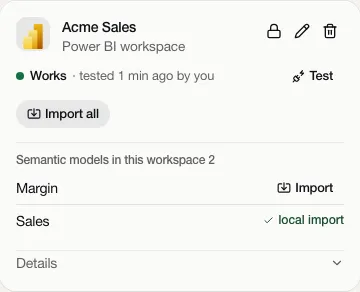
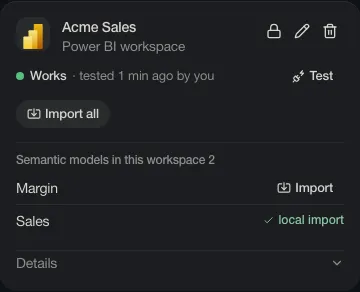
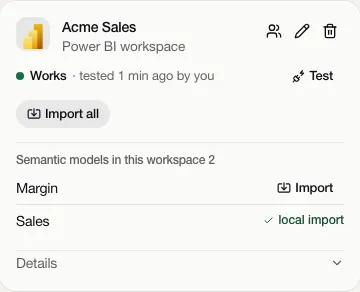
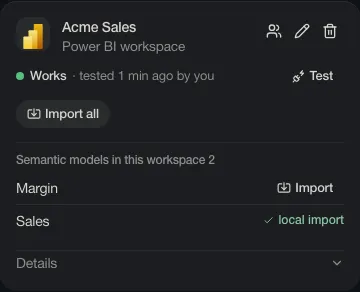
The lock becomes two people: everyone in the organisation now sees it. Click again to make it private.
What others get
Section titled “What others get”Others see the definition: names, formulas, lineage. They see that a connection exists and what it reads, never your source account or the data. When they ask Taki for numbers, the source decides what the account they read with may see: their own, the organisation’s app account, or a shared login.
Only the person who added something can share it, change it or remove it.
Source accounts
Section titled “Source accounts”A source account you store, such as a database login, has its own choice under Who may use it: Only me, Everyone in the organisation, or Background imports only. See Source accounts. Give a shared one read-only rights: everyone who uses it reads with its rights.
Your own Microsoft account is never shared: only you read with it.