Add a connection
Deze inhoud is nog niet vertaald.
A connection says where a source is: a Power BI workspace, a server and database, an address. It never holds a password; that is in a source account. You need the Owner role.
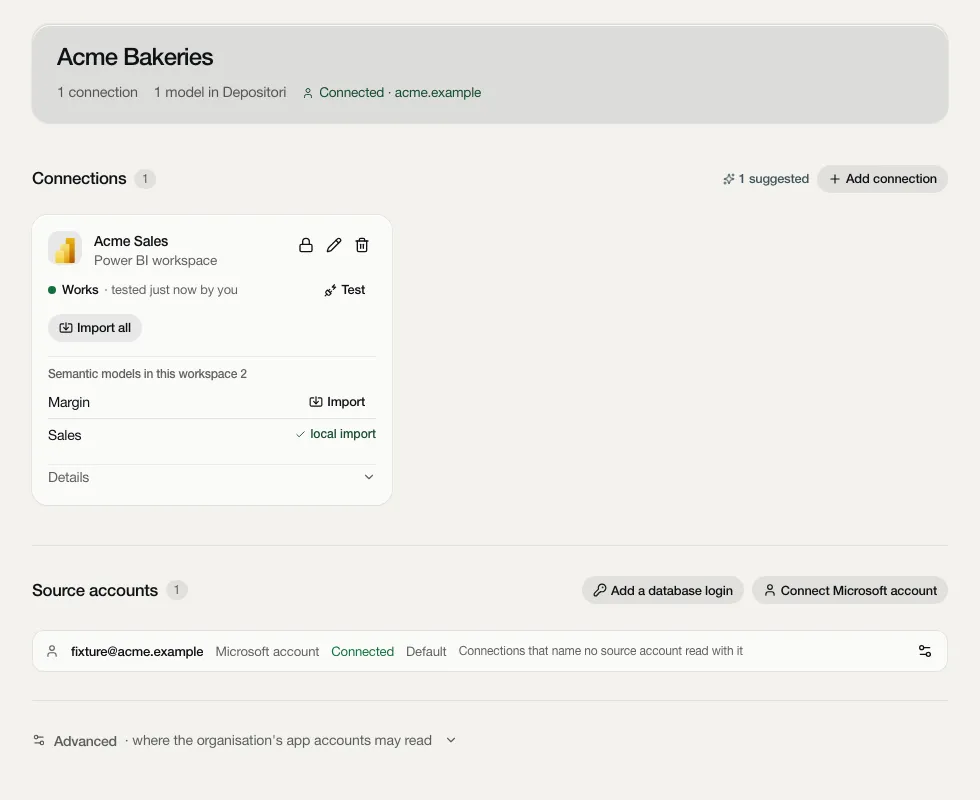
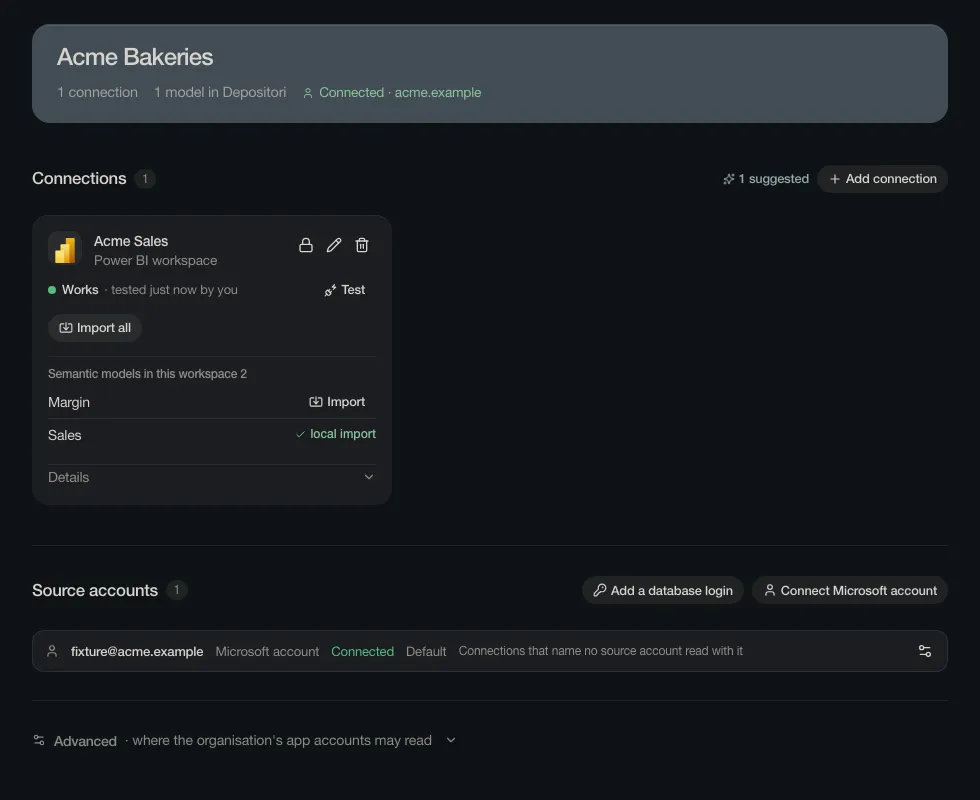
The Connections page
Section titled “The Connections page”Open Connections under Data in the sidebar. From the top:
- Connections: one card per connection, with Add connection and, when a model reads a database that has no connection yet, 1 suggested.
- Imports: the reads that are running or just finished.
- Source accounts: the accounts the connections read with, one row each.
- Advanced, for workspace admins only: where the organisation’s app accounts may read.
Add one
Section titled “Add one”-
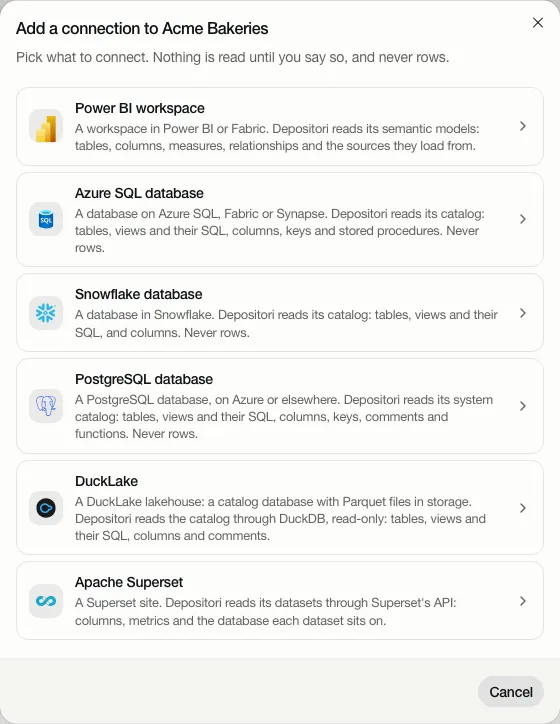
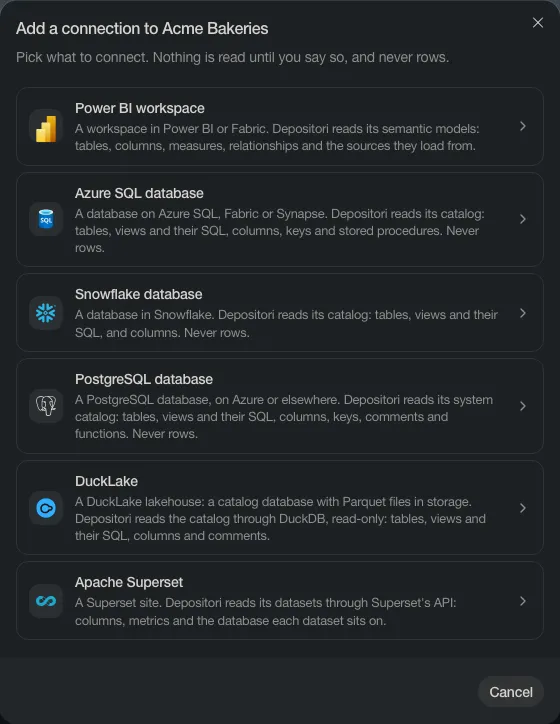
Choose Add connection, and pick what to connect. Each type says what Depositori reads from it.
-
Open Before you start: what has to be in place at the source, such as the rights your account needs or a firewall rule. Pass it on to whoever manages the source.
-
Under Reads with, pick the source account: your own Microsoft account, an app account, or a stored login. Add a login adds one without leaving the dialog.
-
Fill in the fields. Where Depositori can look things up with your account, it offers a list to pick from (a workspace, a database), so you don’t have to type names. Optional fields are under More settings.
-
Give the connection a Name, and choose Test. The result shows in the dialog. A failing test says what kind of problem it is and what to do about it.
-
Choose Save connection. A connection that failed its test can still be saved; it shows as failing until a test passes.
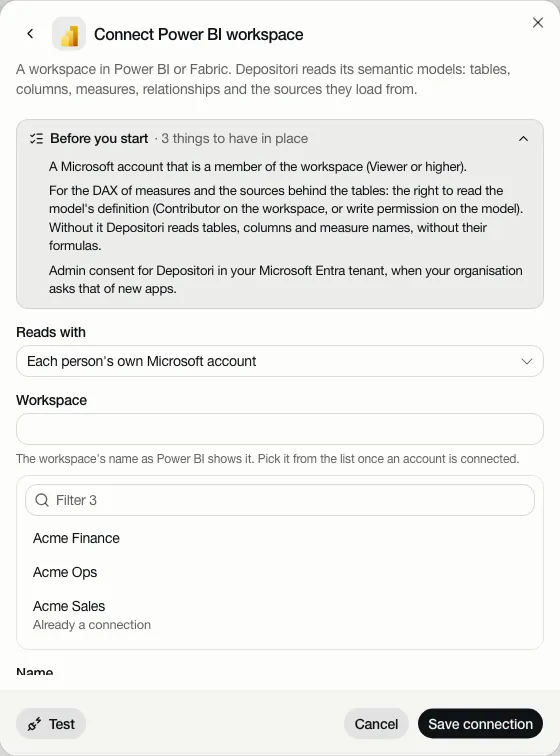
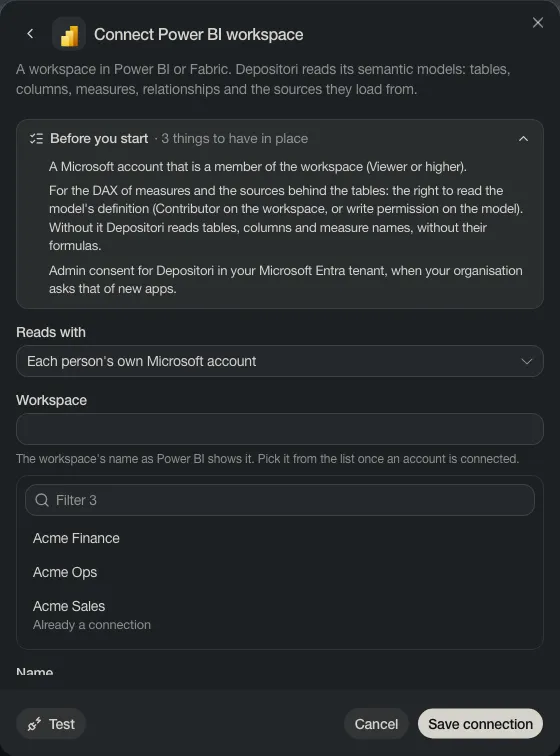
A suggested connection is filled in for you, from what a model reads. Give it a name and save it.
Right after saving
Section titled “Right after saving”The dialog doesn’t close at once. It offers what comes next:
- Who sees it: Only you (the default), or everyone in the organisation. They see that the connection exists and what it reads, never your account or the data.
- Read it now: reads the source into a model straight away (Add as a model, or Pick its models for a Power BI workspace). The model is shared with the organisation unless you pick Only you under Who sees the model. The connection itself stays as Who sees it says.
- Later closes the dialog.
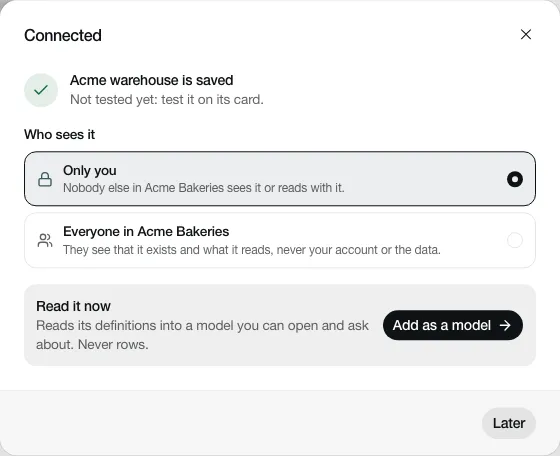
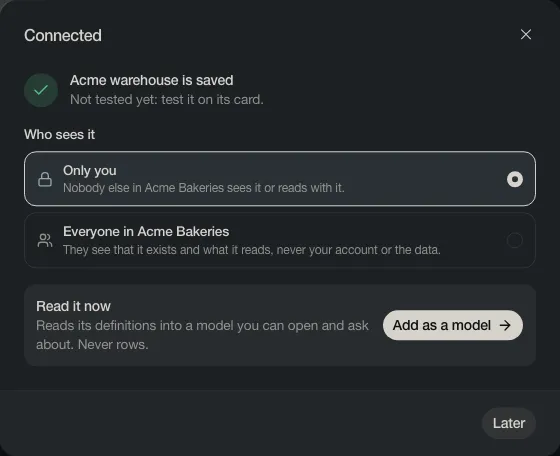
If the connection didn’t pass its test, the dialog says “It didn’t pass its test yet” and offers Edit and Test again first.
The card
Section titled “The card”Each connection’s card shows its last test, such as Works · tested just now by you, or Not tested yet. Test runs it again. The other buttons depend on the type: Import and Import all for a Power BI workspace, Add as a model for a database, and Taki may query for a database Taki can query. A dbt card has no Taki may query: dbt’s artifacts hold definitions, not rows, so Taki reads them from the model and runs no queries there. Details folds out the rest.
The lock shares the connection with the organisation (Sharing), the pencil edits it, the bin removes it.
Source accounts
Section titled “Source accounts”A source account is who Depositori reads a source as. Every connection names one under Reads with.
| Kind | For | Added with |
|---|---|---|
| Microsoft account | Power BI, Azure SQL, DuckLake on Azure, dbt artifacts on Azure Storage, Superset with Microsoft sign-in | Connect Microsoft account: you sign in on Microsoft’s own page. Only you read with it. |
| App account | Everyone in the organisation, without their own Microsoft account | A workspace admin adds it (a Microsoft app with a client secret) |
| Database login | A database without single sign-on | Add a database login: a user name and a password |
| AWS access key | Amazon QuickSight | Add a login, kind AWS access key. See Amazon QuickSight |
| API token | Superset, or an MCP server (which can also use an OAuth sign-in) | Add a login, kind API token |
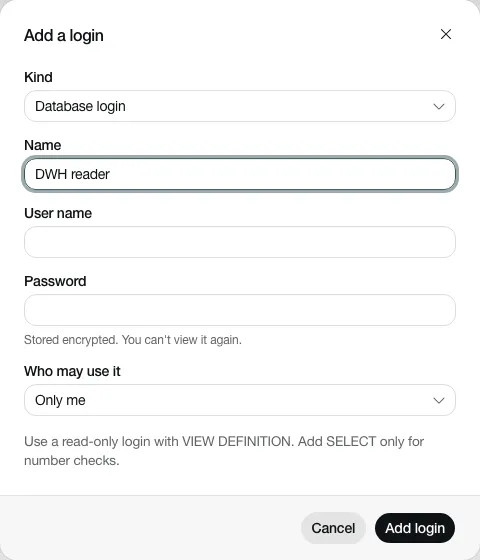
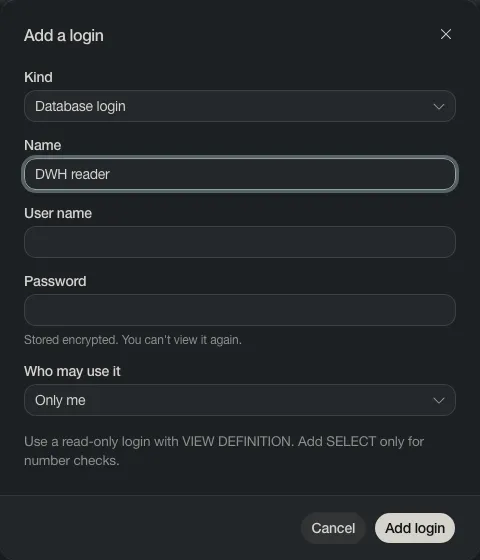
A password, secret or token is stored encrypted, and nobody can view it again, not even you. Under Who may use it you choose Only me, Everyone in the organisation, or Background imports only. Give a shared login read-only rights: everyone who uses it reads with its rights.
The account marked Default is used by connections that name no source account.
Advanced: where app accounts may read
Section titled “Advanced: where app accounts may read”Only workspace admins see Advanced. It lists the places (an API and its host) the organisation’s app accounts may sign in to. An app account never reads anywhere that isn’t on this list.
On a hosted Depositori
Section titled “On a hosted Depositori”Depositori in the cloud only connects to public addresses. A connection to an internal address (a private network or the cloud’s own services) is refused when you save or test it, with “… is not an address this app may connect to”. Use the source’s public host name.
A failed test there shows the kind of failure, such as “The server’s firewall doesn’t allow this app.” or “The server didn’t answer.”, never the database driver’s own message: that can hold addresses and user names.