Sign in
- Open the address of your Depositori. You get it from the person who invited you.
- Sign in with the email address you were invited with. If your company set up its own sign-in, you are sent to your company’s sign-in page.
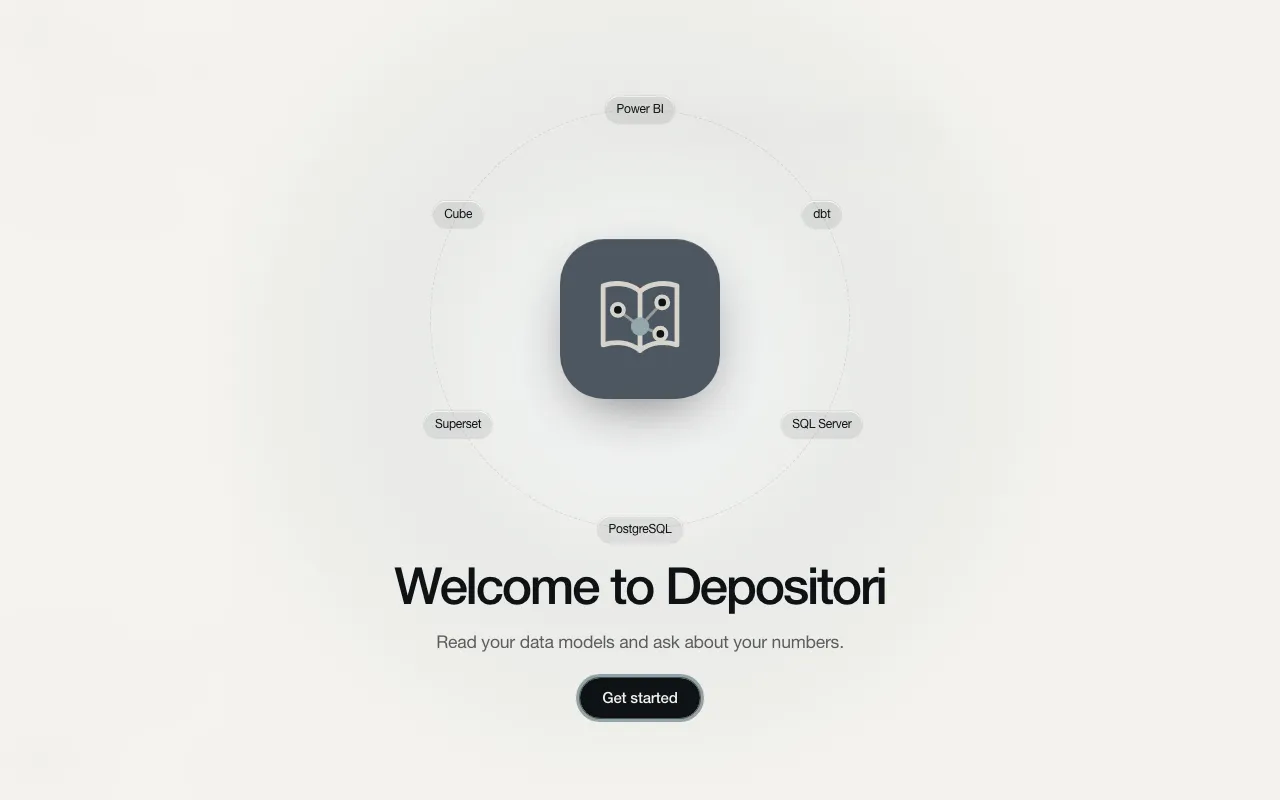
- The first time, a welcome screen appears. Choose Get started.
Find your way
Section titled “Find your way”Everyone has the same sidebar on the left:
- Home: one box to search or ask.
- Glossary: the definitions of your organisation. The number beside it is how many questions are open.
- Organisation: its people, AI settings and the keys for applications.
- Models: every model you can read.
- Examples, at the foot: models of made-up companies to look around in.
If you maintain the organisation (an Owner), you also see Data, with Connections and Sources, and a + beside Models to add one.
Above the menu is the organisation you are in. Click it to switch to another one.
Your account
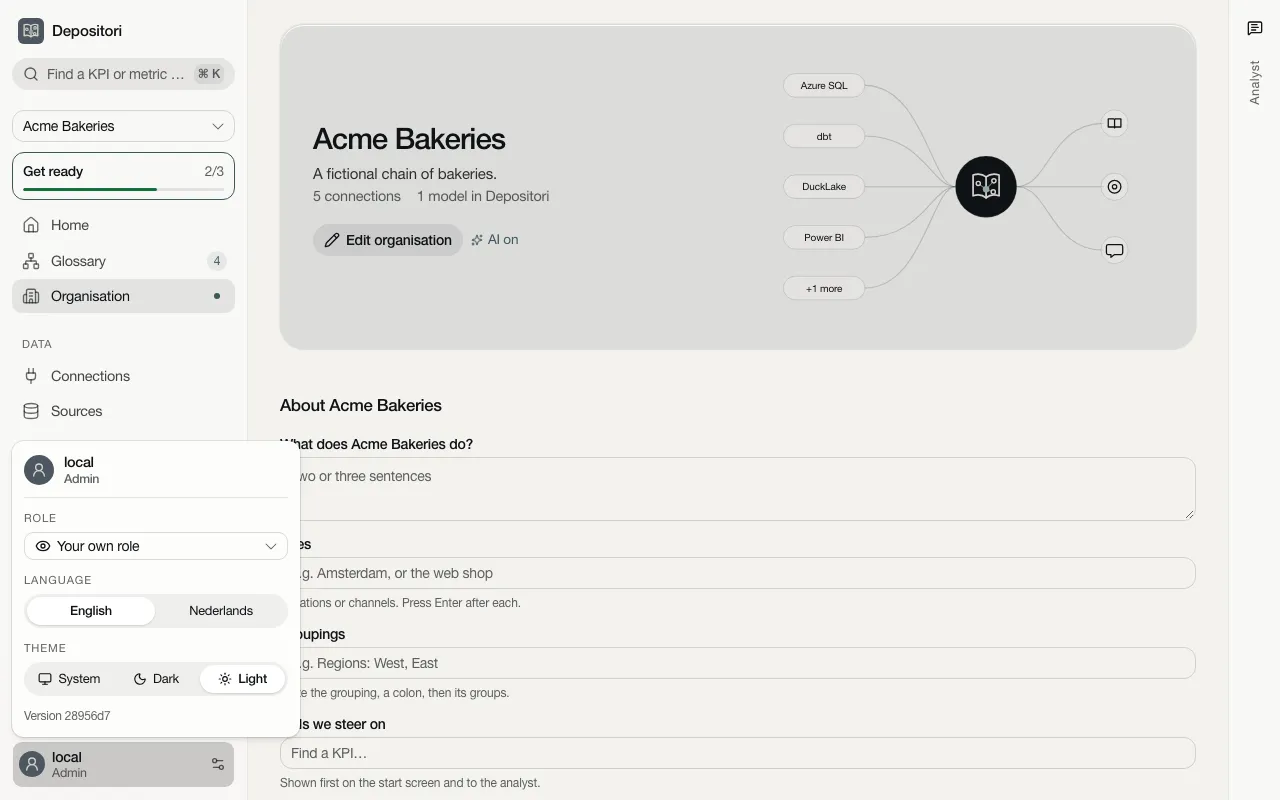
Section titled “Your account”Your name and role are at the bottom left. Click them to:
- see the app as someone with a lower role (Role, see Roles);
- choose the Language: English or Nederlands;
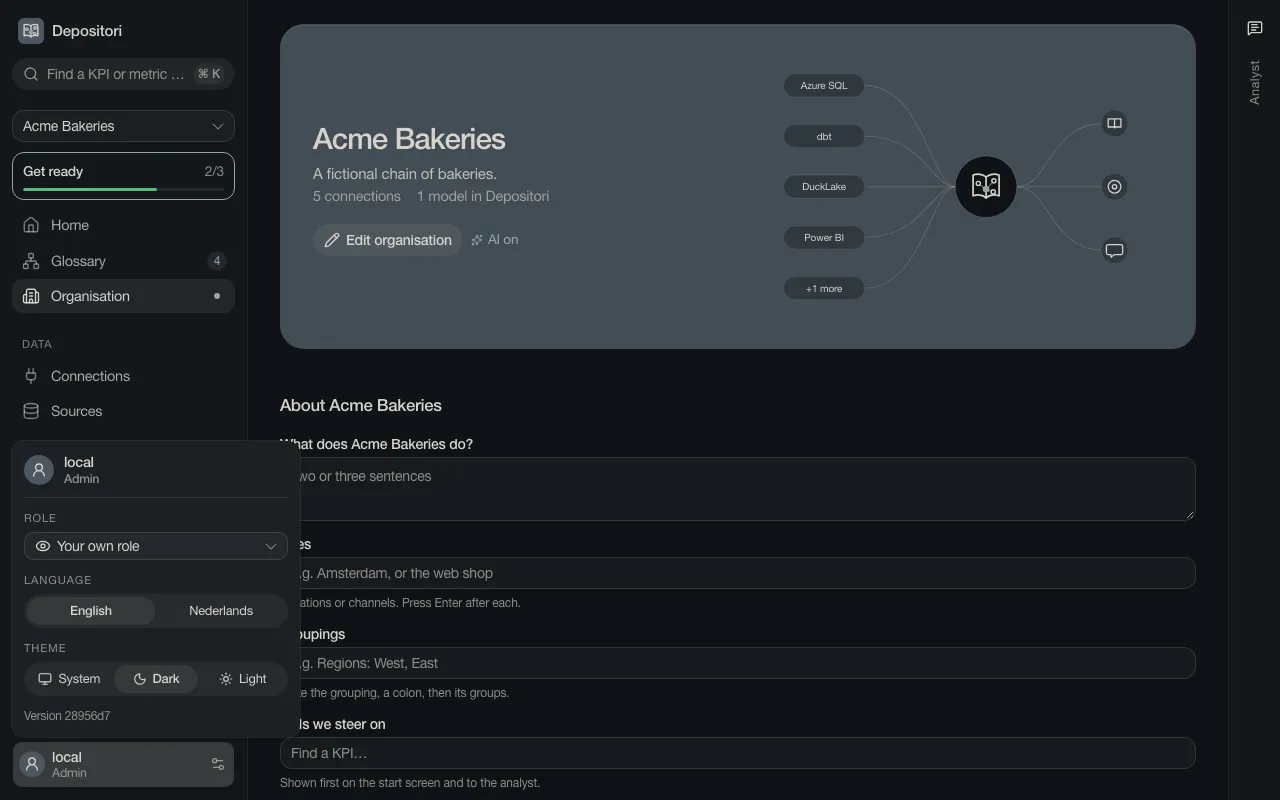
- choose the Theme: System follows your computer, or pick Dark or Light. The choice is kept in this browser;
- open Workspace settings, if you are a workspace admin.
The menu also has Connected apps (the agents you connected, see For applications) and Sign out. The picture below leaves those two out.
At the bottom of the menu, Version names the build of the app you are using. Mention it when you report a problem.
After a restart
Section titled “After a restart”Right after Depositori was updated or restarted, a line may say “Preparing the models after a restart.” The pages fill in by themselves when it is done; you don’t need to reload.