Roles
Everyone has one role per organisation. Each role can do what the roles above it in the table can, and more.
| Role | Can |
|---|---|
| Reader | Read the glossary and the models, and ask Taki |
| Contributor | Also edit the glossary, notes and descriptions |
| Owner | Also manage AI and the organisation’s own AI key, imports, connections, members and API keys |
| Admin (workspace admin) | Also add and delete organisations, set the AI key for the whole workspace, manage owners and app accounts, and allow queries through the API |
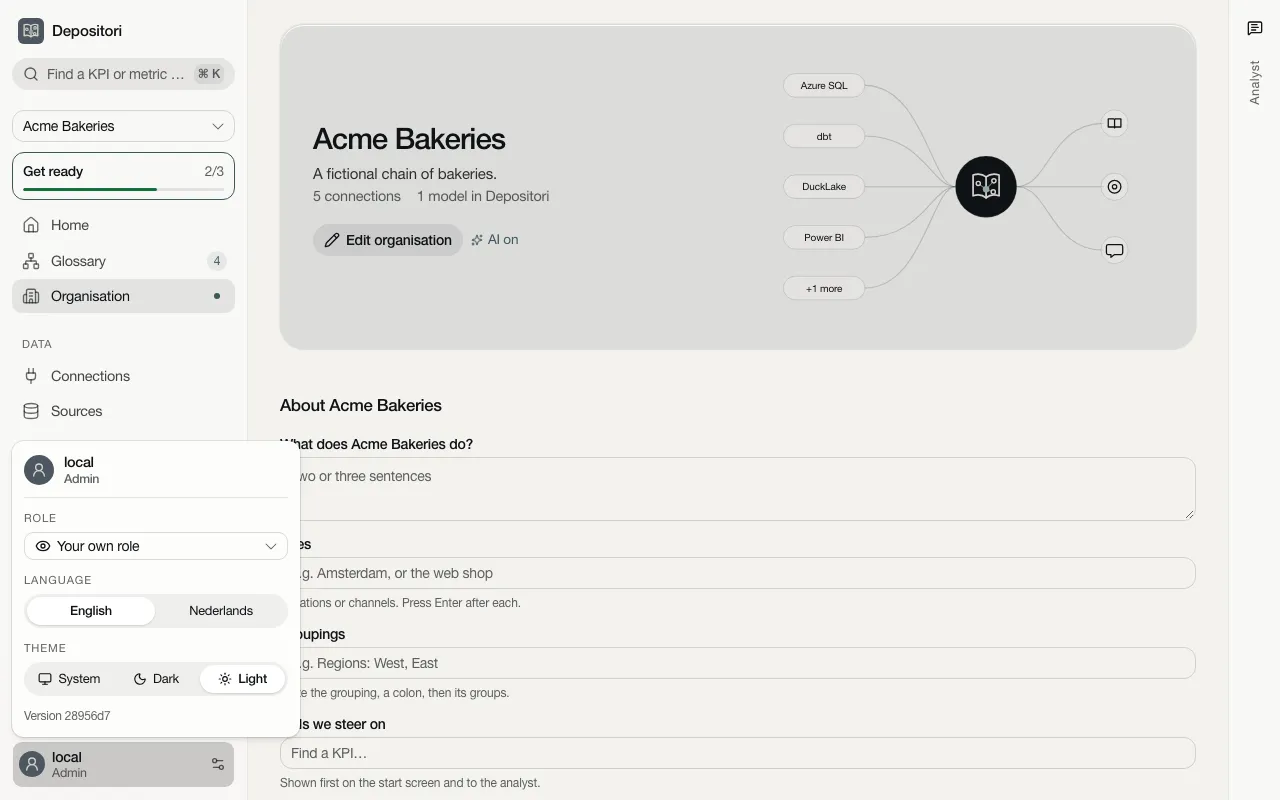
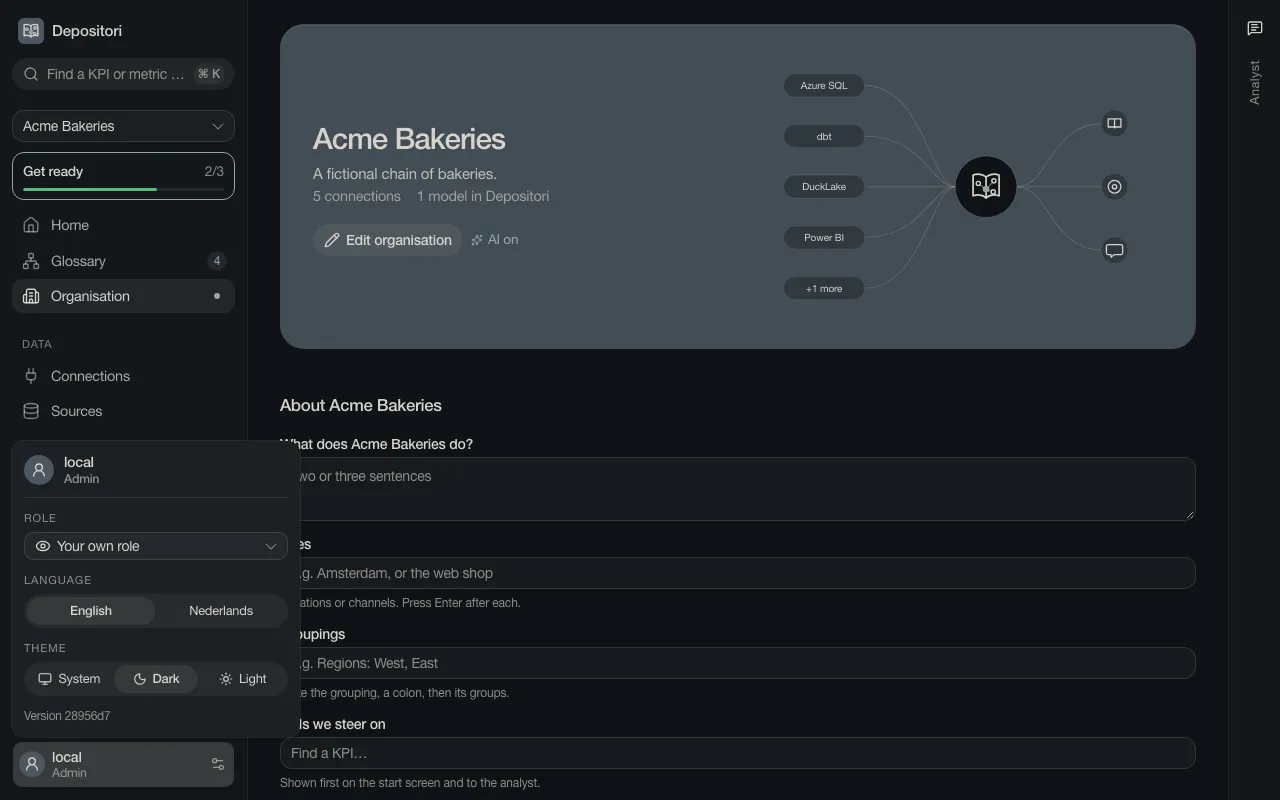
Your own role is under your name at the bottom left.
What a reader sees
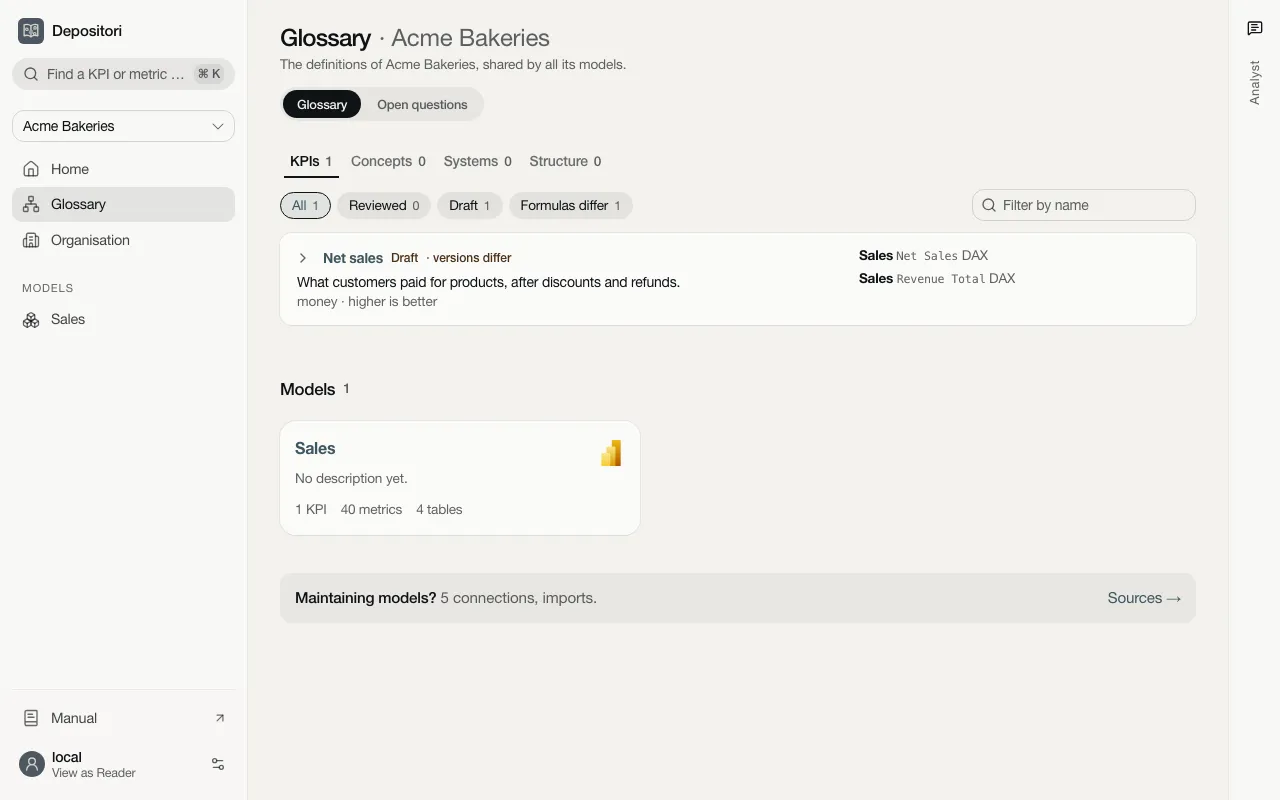
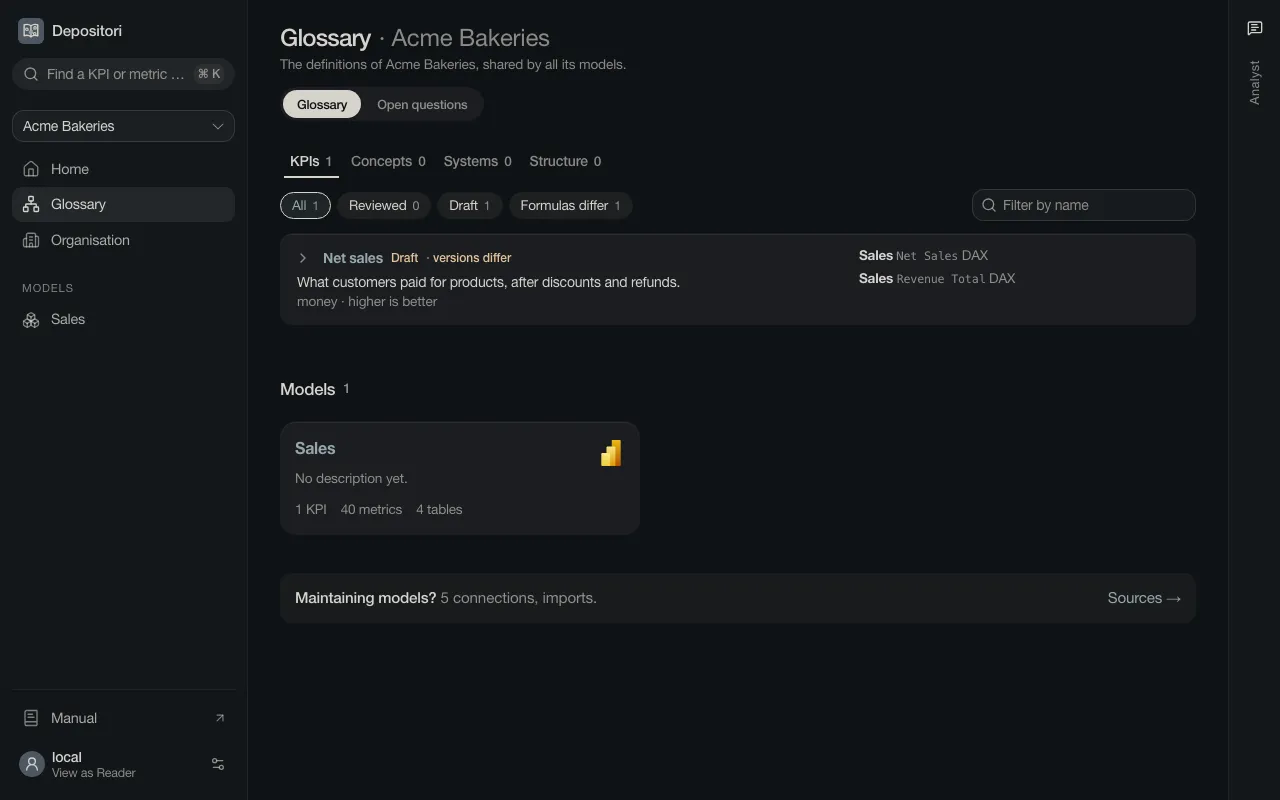
Section titled “What a reader sees”A reader has the same sidebar as everyone, without Data (Connections and Sources) and without the + to add a model. The glossary has no pencil on its rows for them. A link at the foot of an organisation’s page says how many connections and imports there are, for whoever maintains them.
Add a person
Section titled “Add a person”You need the Owner role.
- Open Organisation and find People.
- Choose Add a person.
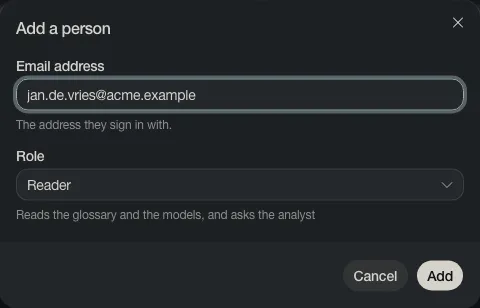
- Type the email address they sign in with, pick a Role and choose Add.
- Send them the address of your Depositori. Copy invite text gives you a message to send.
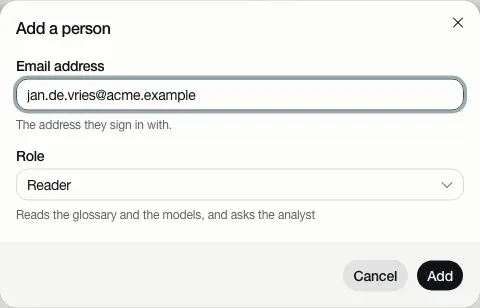
They have the role from their first sign-in. Change it later in the list, or remove the person with the bin.


Owners give the roles Reader and Contributor. Only an Admin makes someone an Owner.
Make someone a workspace admin
Section titled “Make someone a workspace admin”You need to be a workspace admin.
- Open Workspace settings and find People.
- Choose Make admin next to the person. Remove admin takes it back; the workspace always keeps one admin.
Some admins are set by whoever runs your Depositori, in its configuration. Their row names that setting instead of a button, and only they can change it. They name a person by user id, never by email: the copy button on a person’s row copies that id, to send to them.
See what someone else sees
Section titled “See what someone else sees”Click your name at the bottom left and pick a role under Role. The app then shows what a person with that role gets; your name says View as Reader, for example. It never gives you more than your own role. Pick Your own role to go back.