Power BI template (.pbit)
A Power BI template (a .pbit file) holds a model without its data: the tables, columns, measures and
relationships, and where the model gets its data. Depositori reads the model from it. It needs no Microsoft account
and no access to a workspace, so it suits a model you can’t reach in Power BI, or a template a vendor publishes for
its software (such as the Power BI templates of AFAS).
You need the Owner role.
Make the file
Section titled “Make the file”In Power BI Desktop, open the report and choose File, Export, Power BI template. Or use the .pbit file
the vendor gives you as it is.
Read it
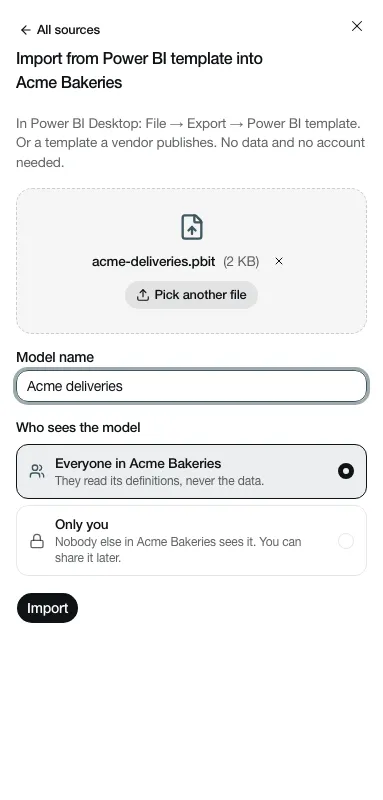
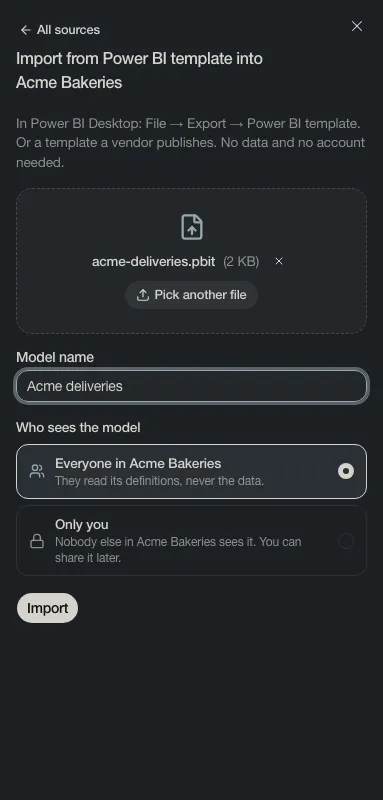
Section titled “Read it”- Choose the + beside Models in the sidebar (Add a model), and pick Power BI template under BI tools. On the guided start, Upload files shows it too.
- Choose Pick the file, or drop the
.pbiton the box. - Give the model a Model name, and pick who sees it under Who sees the model.
- Choose Import.
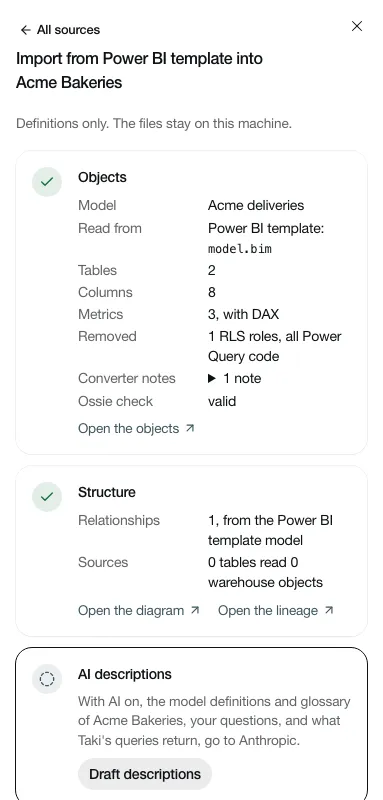
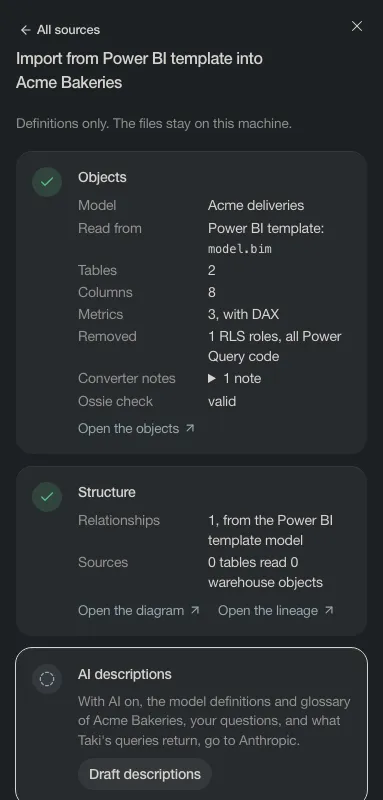
Depositori shows what it read: the tables, columns and measures (in DAX), the relationships, and what it Removed.
What it reads, and what it leaves out
Section titled “What it reads, and what it leaves out”- Read: the model’s definition only. Of the file, Depositori opens nothing else: not the report pages, not the queries’ data.
- Its sources: the places the model’s queries read from, such as an OData feed, so the lineage shows where each
table comes from. An address keeps its host and path; a user name, a password or anything after
?in it is dropped. - Removed before anything is stored: the model’s row-level security roles and its Power Query code. Values filled in for the template’s parameters, such as an environment or a token, are not kept either.
- No live numbers. A template holds no data and no connection to Power BI, so Taki answers from the definitions only, for this model.
A template is at most 15 MB, with at most 1,000 tables and 20,000 columns. A larger one is refused with the reason.
To update the model later, upload the new template again under the same model name.