Add your first model
The first step of Get your organisation ready is Add a model. It offers three ways in, side by side. Pick the one that fits where your model lives. You need the Owner role.
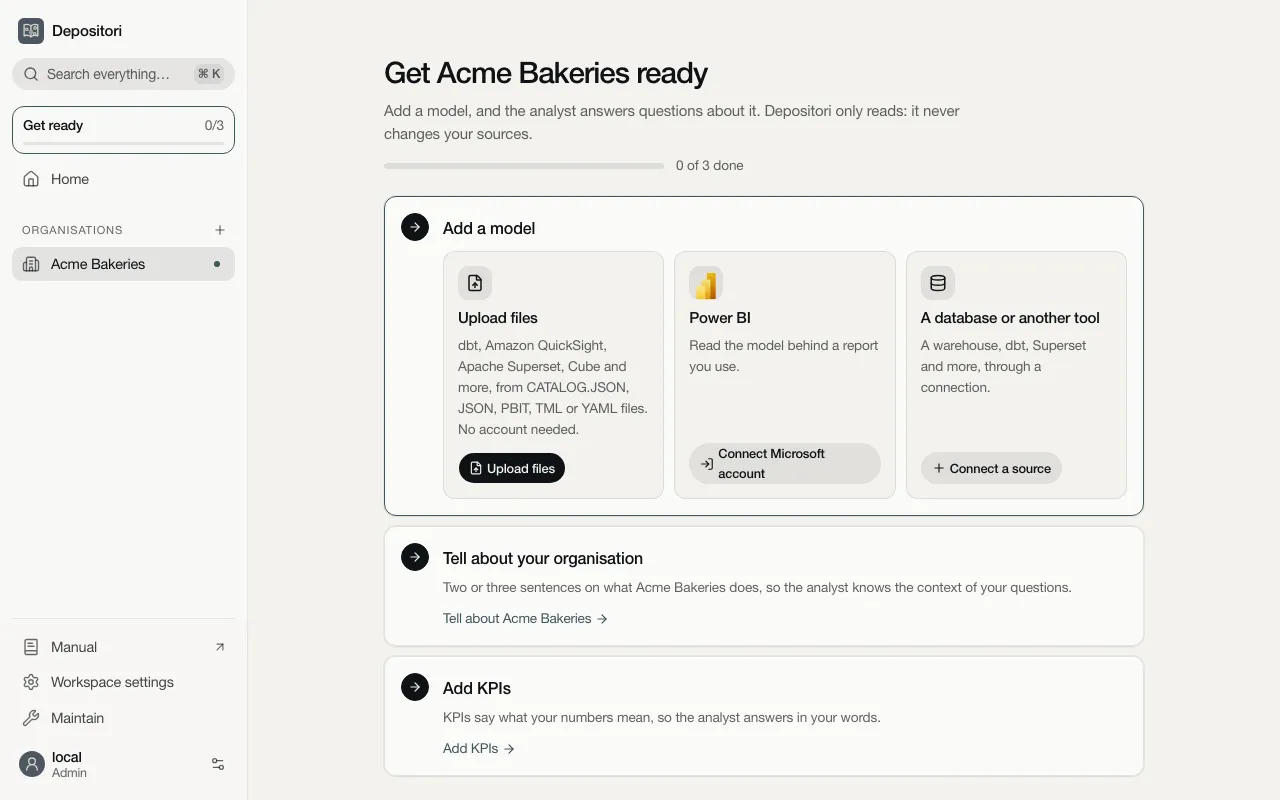
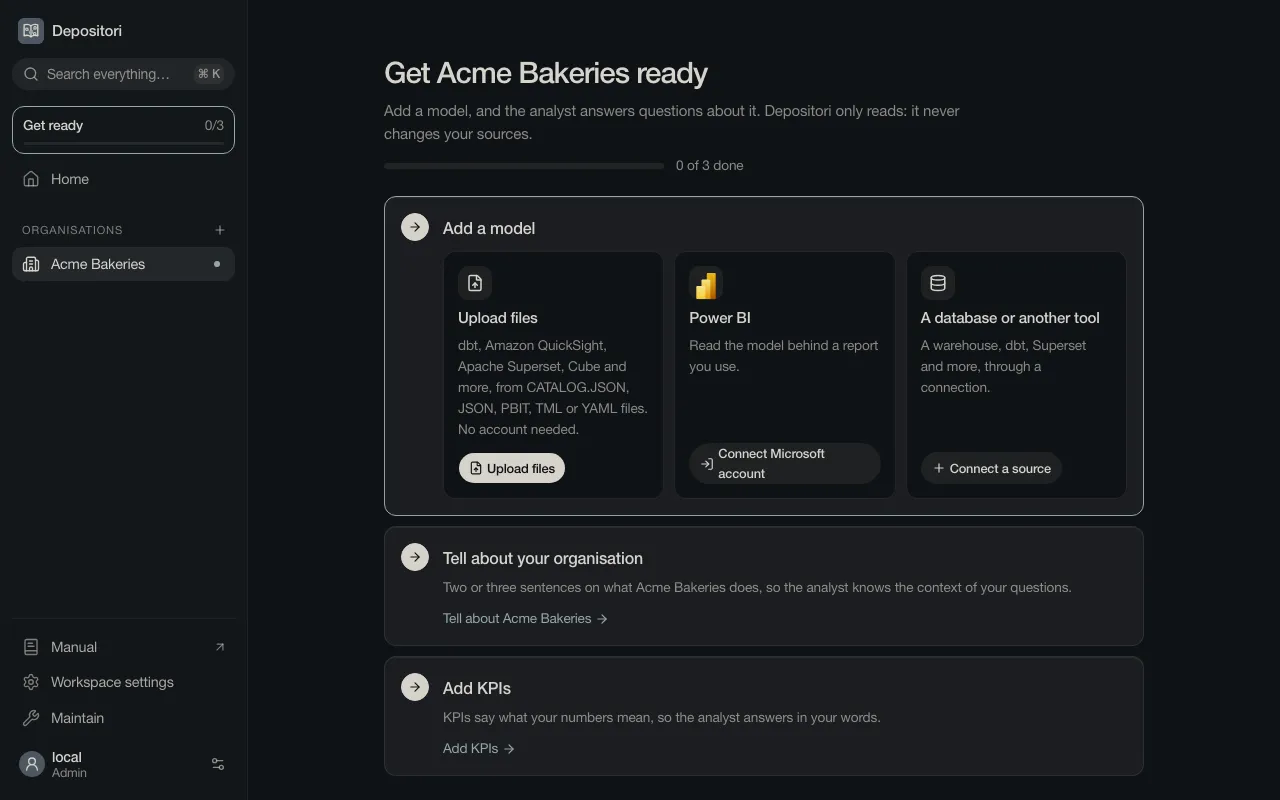
Upload files
Section titled “Upload files”For dbt, Amazon QuickSight, Apache Superset, Cube and more, from the JSON or YAML files the tool exports. No account needed: Depositori reads only the files you give it.
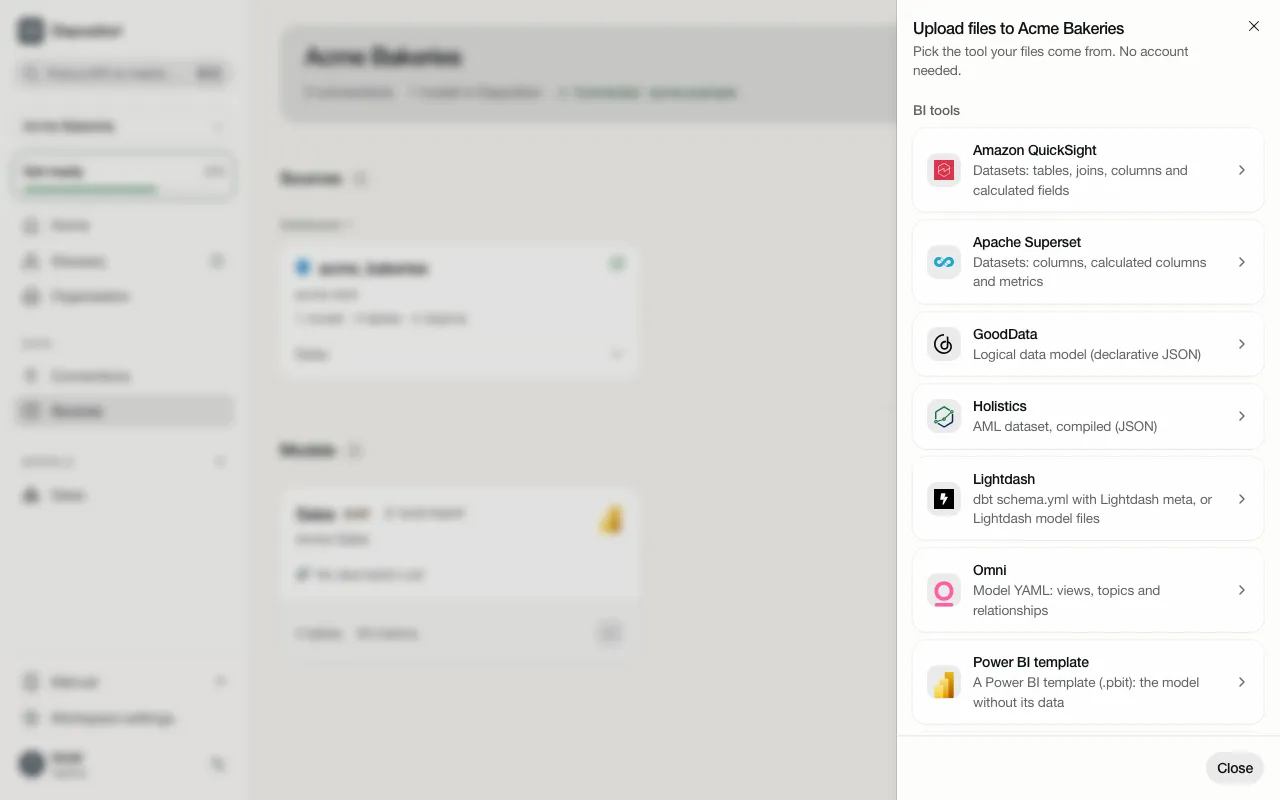
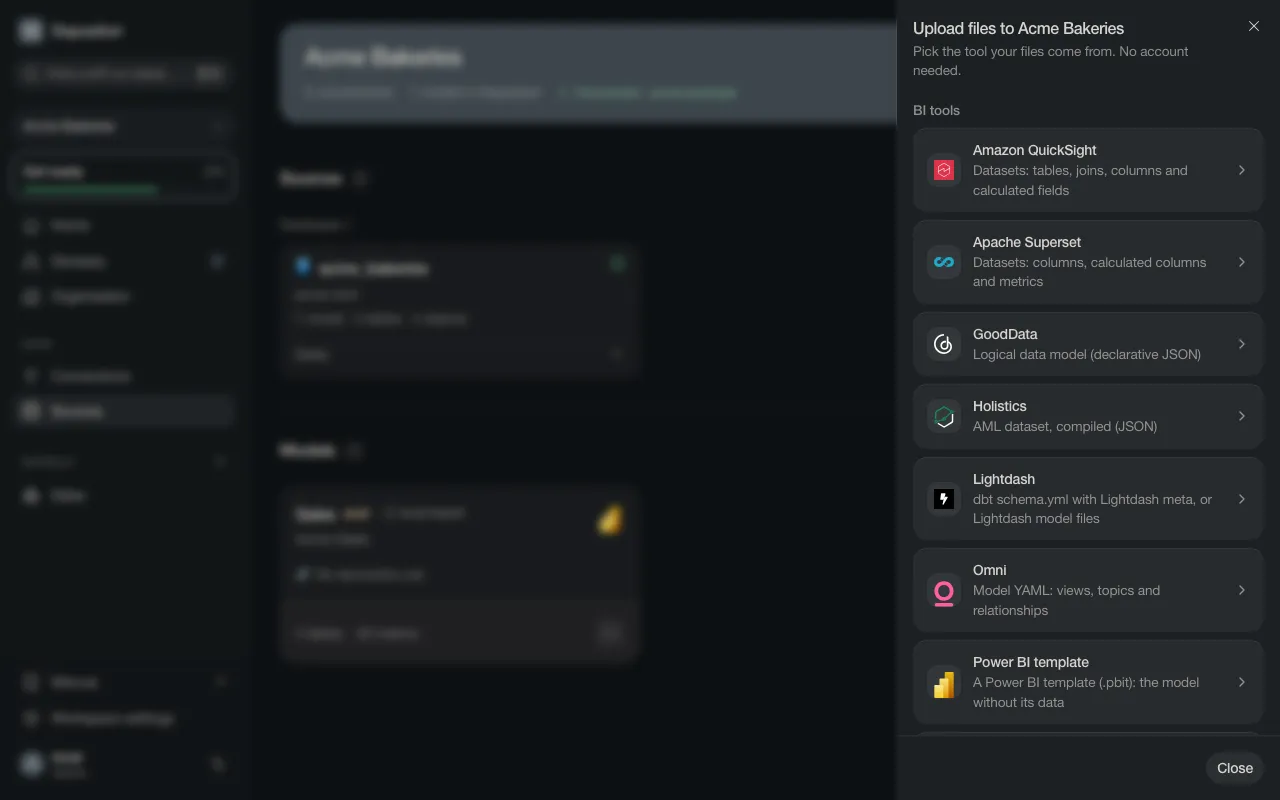
- Choose Upload files.
- Pick the tool your files come from, and follow the hint for that tool: it names the files and how to export them.
- Upload them. The model is read from the files. Under Who sees the model, Everyone in your organisation is chosen; pick Only you to keep it to yourself (see Sharing).
To update the model later, upload the files again.
Power BI
Section titled “Power BI”For the model behind a report you use.
-
Choose Connect Microsoft account and connect the account you use for Power BI. Depositori reads only what that account can open.
-
Choose Pick a report. Depositori lists the reports you can open, per workspace. Search by name, or scroll.
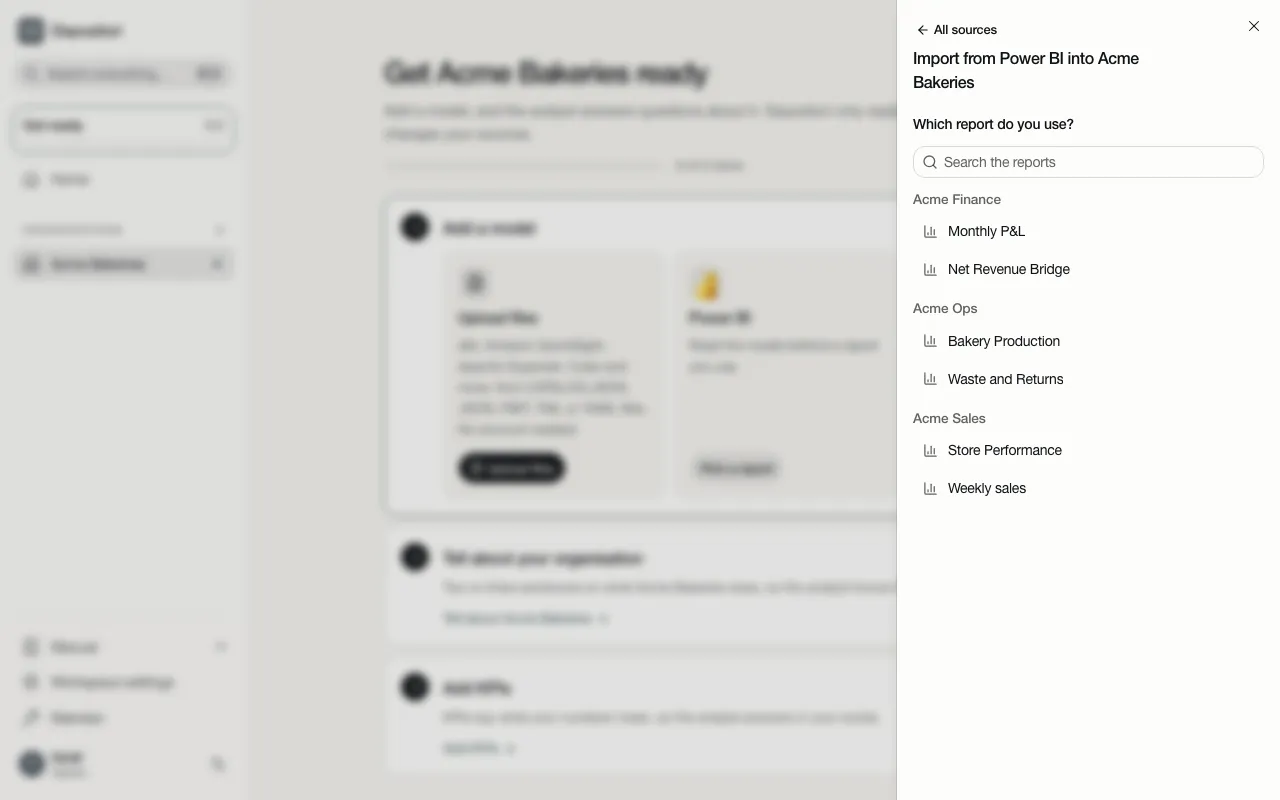
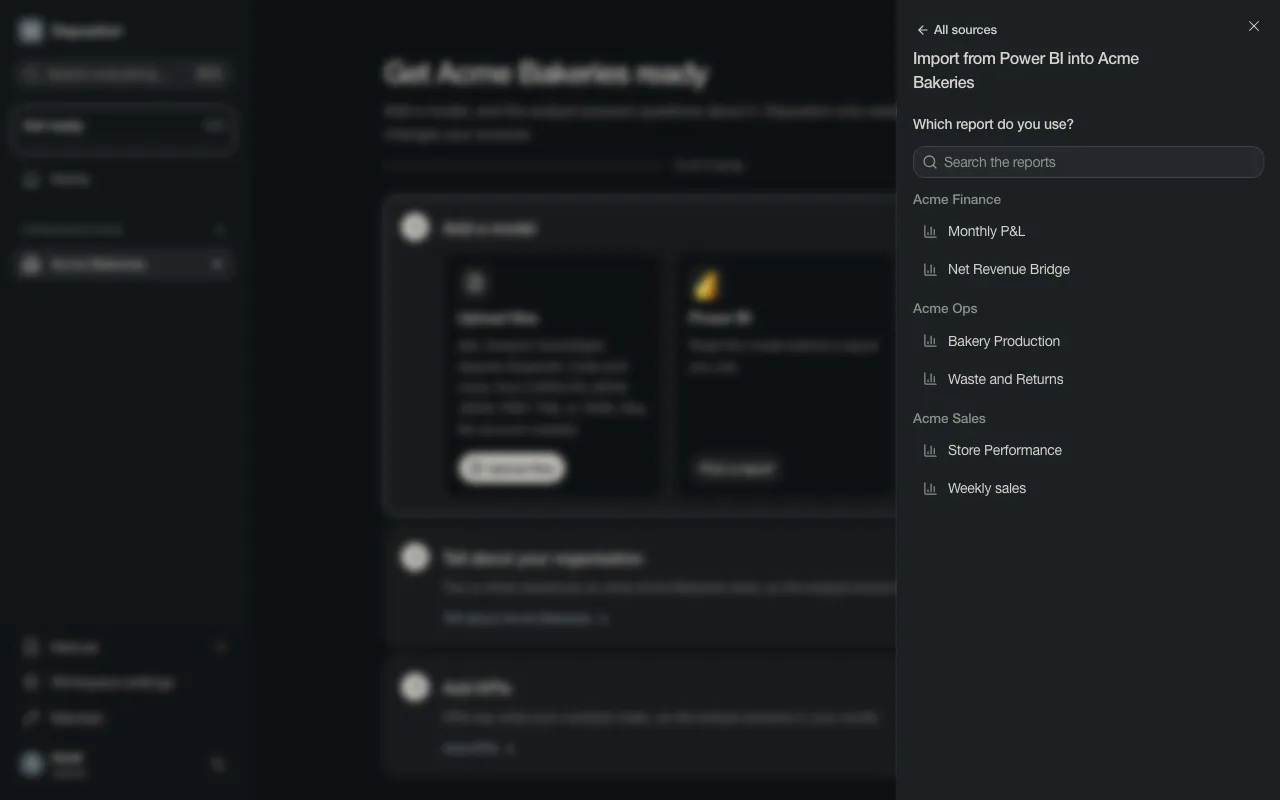
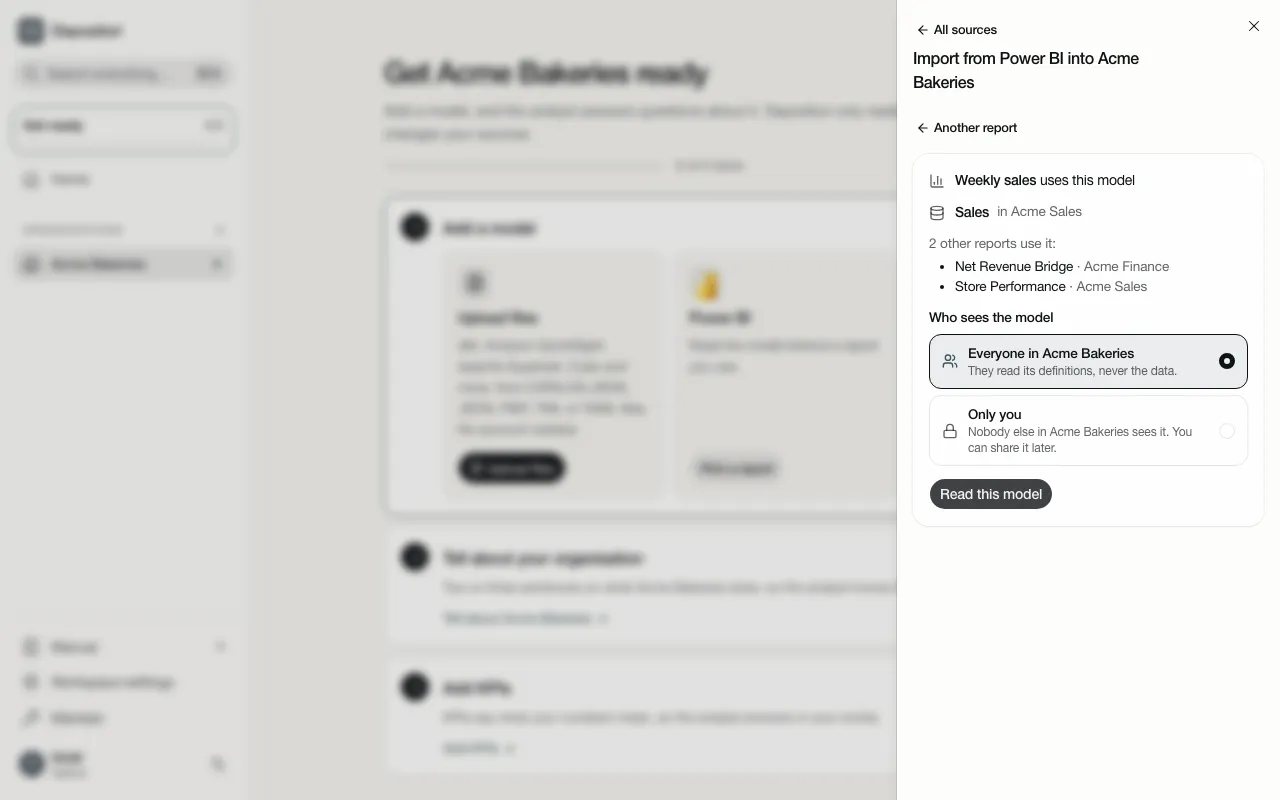
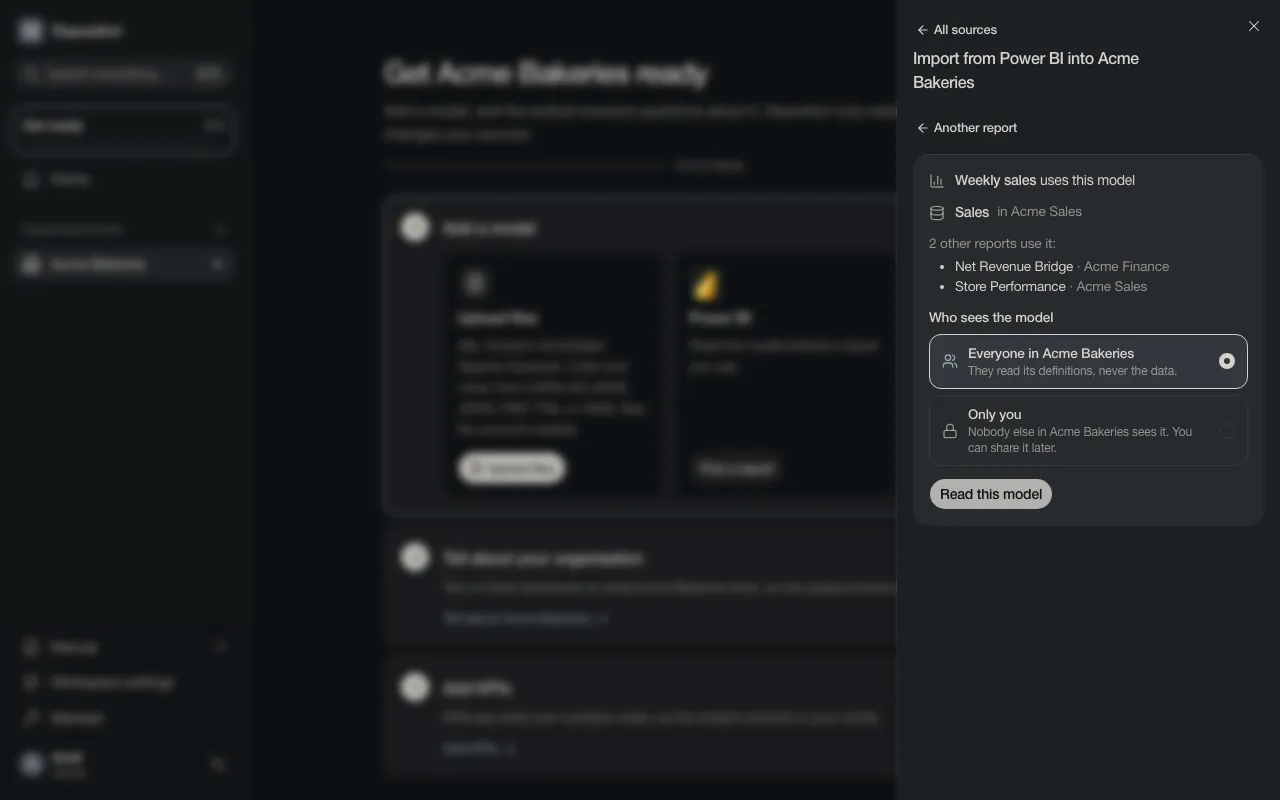
You don’t have to know which model the report uses. Depositori finds it, and shows the other reports built on the same model. A model that has no report is listed under Models without a report.
-
Leave Who sees the model on everyone in the organisation, or pick Only you, and choose Read this model.
More about Power BI, such as reading a whole workspace: Power BI.
A database or another tool
Section titled “A database or another tool”For a warehouse (Azure SQL, PostgreSQL, Snowflake, DuckLake), dbt, Superset or QuickSight, through a connection.
- Choose Connect a source. The add-connection dialog opens: pick the type and fill in where the source is. See Add a connection.
- Once the connection is saved, the step says Read a model. Choose it, pick what to read, and Depositori reads its definitions into a model.
When the read is done
Section titled “When the read is done”Reading takes a few seconds to a minute. You can close the panel: the read goes on.
When you started from the guided start, you stay there: it says Sales is read. and moves on to the next steps. Started anywhere else, the finished read opens the model.
Go on with Read a model.